Word Processing?
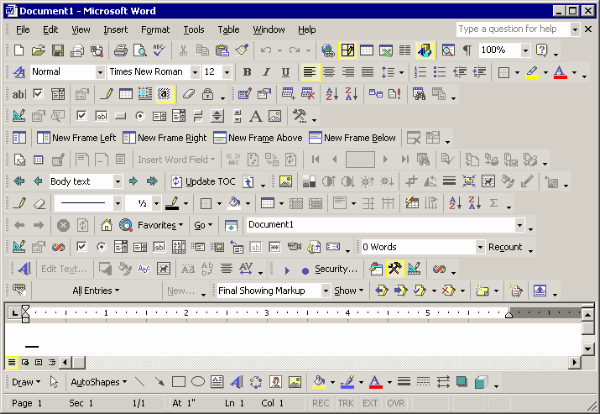
A classic predicament. Using MS Word or Google Docs is painfully slow, requires internet, and all your sensitive information along with your family’s is sent off to American mega corporations. Alas, but what else can one do?
I’ve written about this before generally as far as making documents with Vim, here I’m hoping to keep track of the practical tips, tricks, and settings/plugins which add to the experience of using ViM as primarily a writing tool. Generally, at least for me, how typing things out usually goes is:
- sitting around thinking about doing it
- actually starting
- initial typing stage
- getting side tracked
- editing and fixing spelling mistakes
- getting tired/fatigued
- loosing the file somewhere in the computer
- exporting it
So I’m going to show how I addressed this process with ViM settings, plugins, and general usage.
Sitting Around Not Starting
This is a hard one, also does this have anything to do with the actual word processor you’re using? I think yes, as Word or Docs is such a pain to use there is a certain dread, “okay fine let’s just open this thing up and get going here” to knowing you’re going to be annoyed through the following stages of the aforementioned writing process. Vim helps as it’s lightweight to open and works even if the sketchy cafe wifi isn’t. Those hurtles jumped the next, maybe more strange thing, is that because it’s sort of like a discovery process using it there is a certain ‘fun’ factor which can come from knowing you’re gonna have to play that “hmm how can I press as few keys to do this next thing” mini game with yourself.
Actually Starting
Easy as once you’ve decided to. Just ‘$vim’ and you’re off to the races. Deciding where in your directories you’re going to save your work be damned but at least the file is opened. What I’ve done for this is create easy all lowercase directories, then go from there. Each document I wrote I usually kept in it’s own spot so that the actual file and the outputted PDF were together and they wouldn’t get lost.
Due to Vim feeling less clunky I think actually getting going is easier. There is less inherent flusterization so in my subconscious I’m not already getting annoyed thinking about trying to find buttons in toolbars and what have you.
Typing Stage
Really this is the same no matter what word processor you’re using. You still have to come up with all the things and actually press the keys to get that written down. Here your mind is the bottleneck. That being said starting and stopping is annoying and so Vim motions help here a lot I think. Ones I hop around a lot with whilst in the typing stage.
| motion | action |
|---|---|
| CTRL+W | deletes back by a word while in insert mode |
| w and b | in normal mode moves forward and back by word |
| } { | normal mode, jumps by paragraph (white space) |
| SHIFT+o | Along with o, adds a new line above or below and enters insert mode |
| I and A | Enters insert mode and the beginning or end of a line |
| ( and ) | Jumps forward by sentence within a line |
| f, t and ; | Used in conjunction with a character, jumps forwards to the next instance of what you want |
Using the “leader + w” does a quick :write which I think is easier than actually typing that every so often, and adding SHIFT into my close window key has helped me from accidentally killing the window…
Some settings I think which help massively to make writing more pleasant:
    opts = {
      number = true;
      relativenumber = true;
      scrolloff = 5;
      smartindent = true;
      swapfile = false;
      linebreak = true;
    plugins = {
      vimtex.enable = true;
      treesitter.enable = true;
      typst-vim.enable = true;
    };
The plugins are super useful as they add to the highlighting of LaTeX or Typst syntax. I think they also add some other neat features but ya I’m not smart enough to really know where or how they’re helping there.
Getting Side Tracked
Ah a classic part of writing, espeically when it’s for a school assignment. Vim helps with this a lot I think mainly because the screen is so clear. Plugins which help:
- ZenMode: Mapped to CTRL+G, Removes status bar and LSP errors, centers text on the screen and makes it /comfy/ lookin. I used to use Goyo but ZenMode is just the newer version, works better as the numbers stay on the side.
      zen-mode = {
        enable = true;
        settings = {
            window = {
              backdrop = 1;
              height = 0.9;
              width = 0.8;
            };
         };
- Limelight: Jury is out on this one still, but it dims everything that isn’t the paragraph your cursor is on.
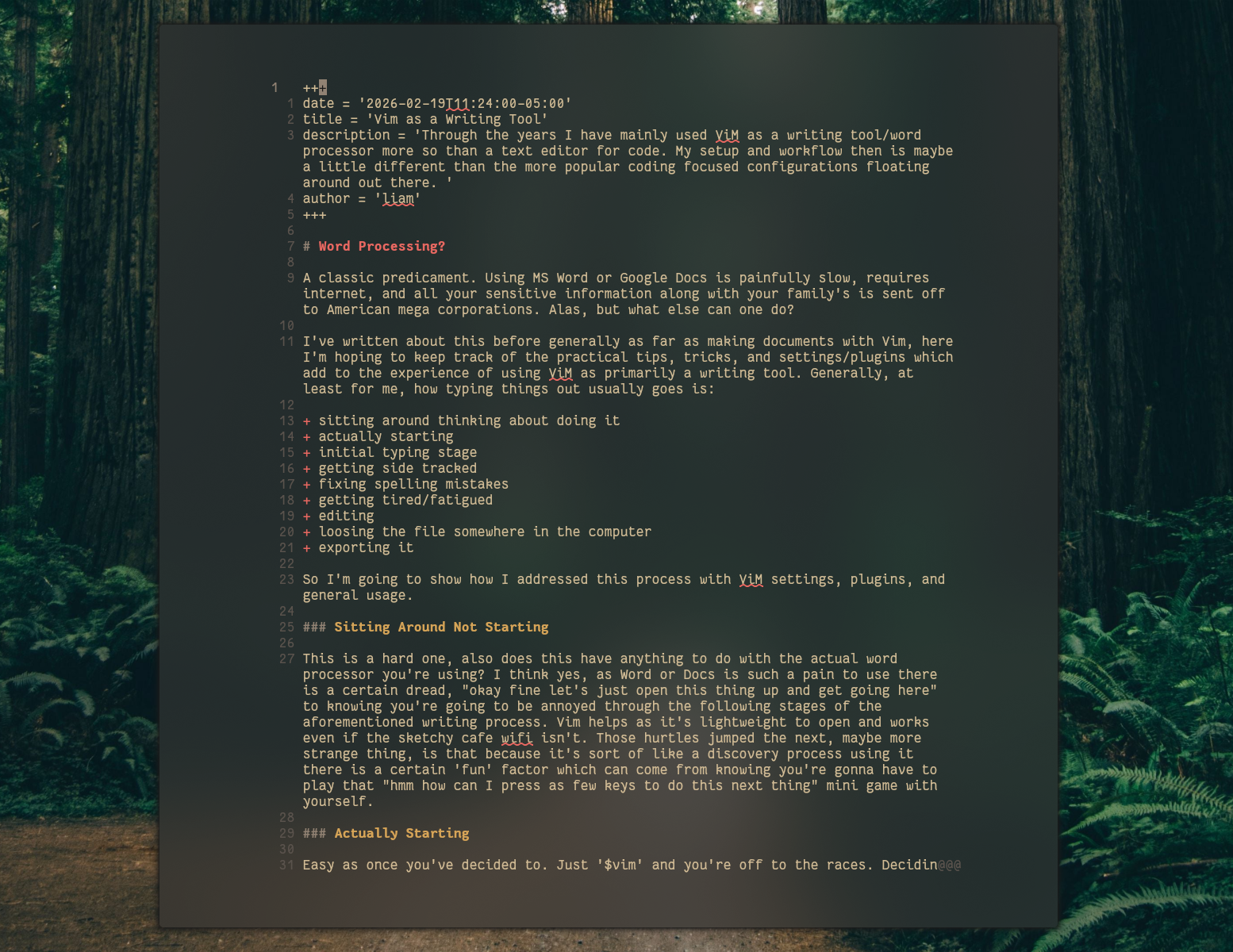
No menu bars, I even mapped SUPER+SHIFT+G to kill my waybar so its just the floating Vim window on the screen. I also use CTRL+SHIFT++ to increase the font size usually once or twice when typing for a while. I find with such a clean screen its easier to stay focused and it’s more inviting to look at for a longer time.
The side tracking that does happen is more productive as well because of Vim I think. Usually what happens is during the editing stage the idea to find a more efficient way to do something strikes and becomes a rabbit hole of reading the oh so helpful :help documents which I finally understand how to use.
Editing/Fixing Spelling
I tend to do this half way as I’m initially typing and then again at the end. The built in spell checker is awesome and fast as to use. I have it enabled like so
      spell = true;
      spelllang = "en_us";
Like you’re expecting from Word or whatever misspelled words with have red squiggles below them. It’s easy to go back then and edit as you go.
| Motion | Action |
|---|---|
| [s ]s | In normal mode jumps forwards or backwards by misspelled word |
| z= | Brings up suggestions to fix the misspelled word under your cursor, pick the number and hit enter |
| 1z= | Will just put the first suggestion as the replacement without showing you the list |
With line break on the single line paragraphs wrap which make it easier to look at, but occasionally jumping by word or sentence backwards and forwards is a pain so I’ll toss in the occasional gk or gj to move up or down within the line.
Other classics I use a lot when editing and moving around once the document has gotten larger.
| Motion | Action |
|---|---|
| y and d | Classic yank and delete which is really cut. I don’t use visual mode too much because you can just yank without selecting with the same operators. |
| Shift+V | Handy for selecting entire lines |
| CTRL+U and D | Moves your cursor and view up or down by about a third of a page at a time |
| CTRL+Y and E | Strange but scrolls the view without your cursor moving |
| Search | I use the / a lot to essentially just jump around if I see the spot I want to jump to |
| zz | Handy, centers whatever line your cursor is on to the middle of the pane |
| x | Deletes the character under the cursor staying in Normal mode |
| G | After scrolling around to reread something, G hops back to the end of the document to continue on typin’ |
Getting Tired/Fatigued
Especially during my school days when the projects were long and the deadlines were fixed I found this to be an issue. Vim helps with this greatly. I’m not sure if Word or Docs has a darkmode, but Vim sure does. The colors are obviously infinitely customizeable and then with the general ricing of Linux I find I can make the space more /comfy/ to hang in generally which helps with the fatigue.
  colorschemes = {
       gruvbox-material.enable = true;
    };
  ops = {
      termguicolors = true;
    };
  plugins = {
      transparent.enable = true;
    };
I also find that the general editing process is the most annoying, but Vim inherently helps with this because of the side quests. Continually thinking about the best way to do something with as few key strokes makes it more fun and therefore easier to do for longer. The advanced features where it starts getting wild, thinking of macros and different registers and so on. Changing a whole bunch of things in Docs by highlighting, copying and pasting, and so on is so so tedious and infuriating. I find that these sorts of tasks are actually entertaining in a way in Vim even if at the end of the day I thought about how to do them for so long it wasn’t actually any faster.
Loosing Files
This used to happen to me a lot. I tried to have clear directory structures but often time in the moment, say working in a group, I wouldn’t take the extra two seconds to follow my own naming schemes and things would end up everywhere. It didn’t help that at the time I was using LaTeX which makes 4 files as output every time you export something to PDF…
In steps Telescope. I feel so dumb for not using this sort of thing earlier. FZF has been around for ages and ages and I was too dumb to figure out how to actually implement this until like a month ago lol.
      { # Telescope files
      key = "<Leader>f";
      mode = "n";
      action = ":Telescope find_files<CR>";
      }
      { # Telescope Help
      key = "<Leader>h";
      mode = "n";
      action = ":Telescope help_tags<CR>";
      }
      { # Telescope Buffers
      key = "<Leader>b";
      mode = "n";
      action = ":Telescope buffers<CR>";
Now I can just open Vim and whip up the neat fuzzy finder which looks forwards in all the directories recursively and start typing away to find stuff, no matter where it went. Also, the other pickers that Telescope has is neat because it makes things like using buffers a little easier to approach and so I use more of these features as well.
Exporting
Here things can be a bit different depending on the formatting and document types I’m writing. When I was in school and therefore making lots of documents I was using LaTeX which was pretty nice once I got a directory of template files going so I didn’t actually have to know LaTeX itself. I turned a lot of rambling notes I took into Beamer presentations really quickly by the editing methods mentioned above and just changing \docktype={beamer} or whatever at the top and bam I was done.
To help when writing LaTex I had the following keybinds mapped to have a preview update every time I saved.
      { # LateX Compile
      key = "<C-i>";
      mode = "n";
      action = ":! pdflatex %<CR><CR>";
      }
      { # LateX Preview
      key = "<C-s>";
      mode = "n";
      action = ":! zathura %(echo % \| sed 's/tex$/pdf/') & disown <CR><CR>";
      }
Now I’ve switched to Typst as its lighter and faster with less complicated syntax. I don’t really make super complicated documents ever so LaTeX is sort of over powered. That being said I have a few things like my resume in LaTeX still so I keep these around. Typst has a cool watch feature which sort of combines those two commands into one which I have mapped.
      { # Typst Watch
      key = "<leader>p";
      mode = "n";
      action = ":TypstWatch <CR>";
      }
Mainly though what I’m doing now are Markdown documents for the sailing blog or this blog. These I just write in Markdown which is easy enough to read just straight up in Vim. I have some plugin for the syntax and Treesitter also colors the headings and stuff. Once these are rendered to HTML with Hugo you see the formatting you’re reading this on now!